
Using ChemDraw Pro
ChemDraw | Account Creation & Software Download
Start by going to this Revvity Signals website: https://connect.revvitysignals.com/sitesubscription/
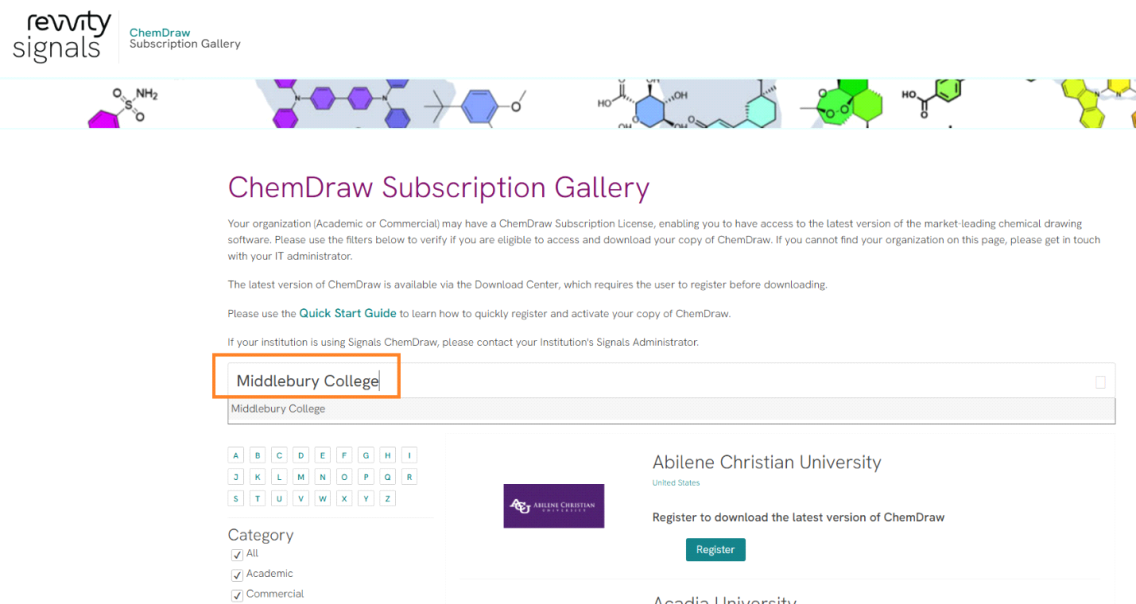
In the “Search Institution” text-box enter Middlebury College and it will bring you to the Middlebury College specific download site.
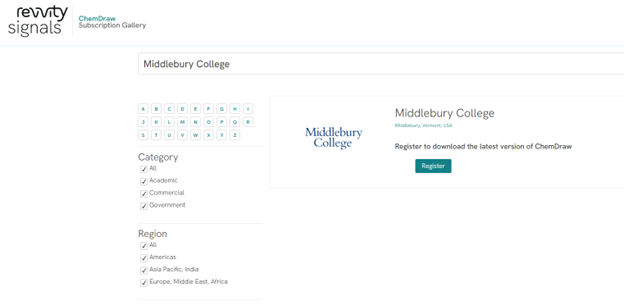

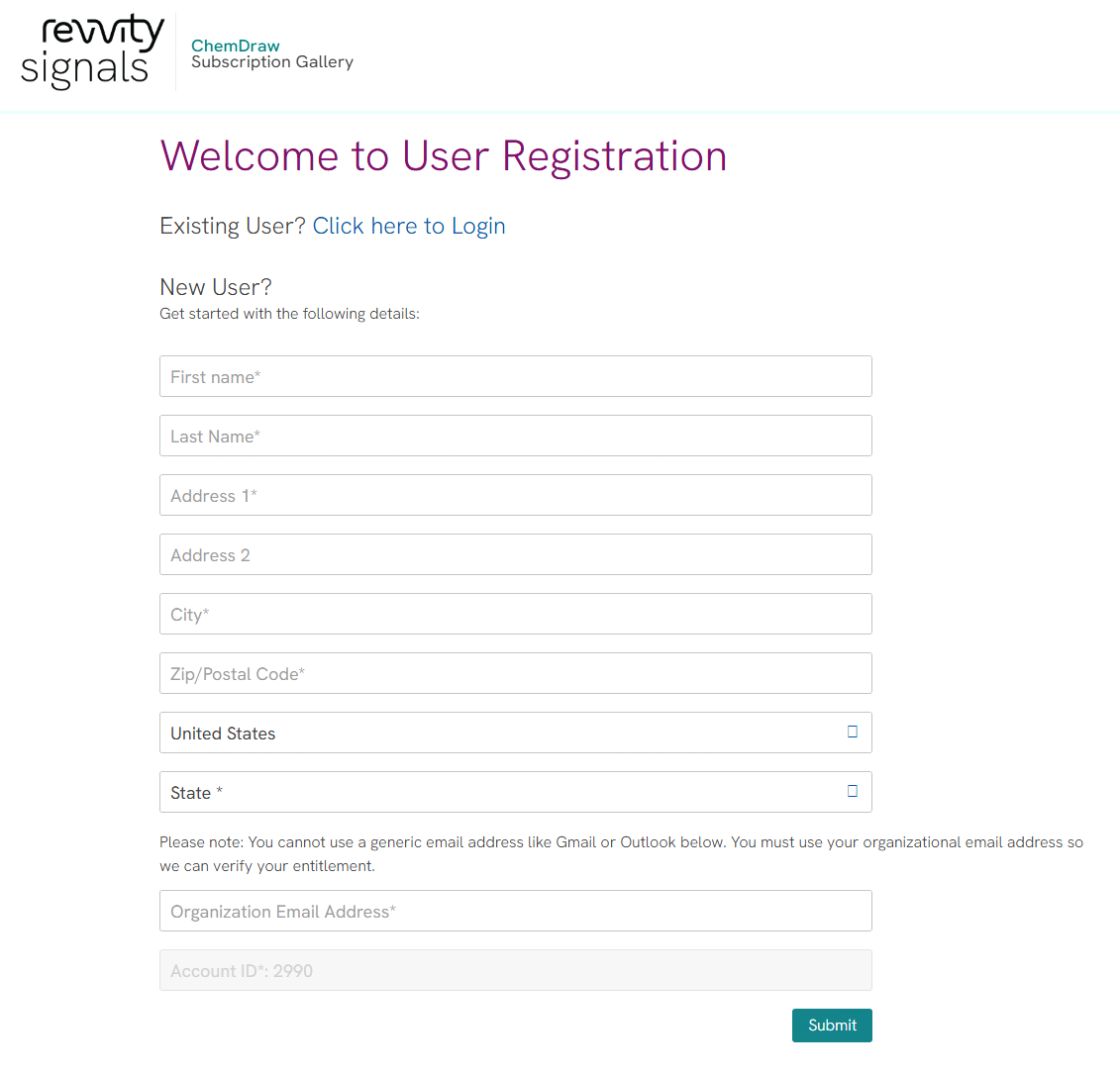
You can see my examples below.
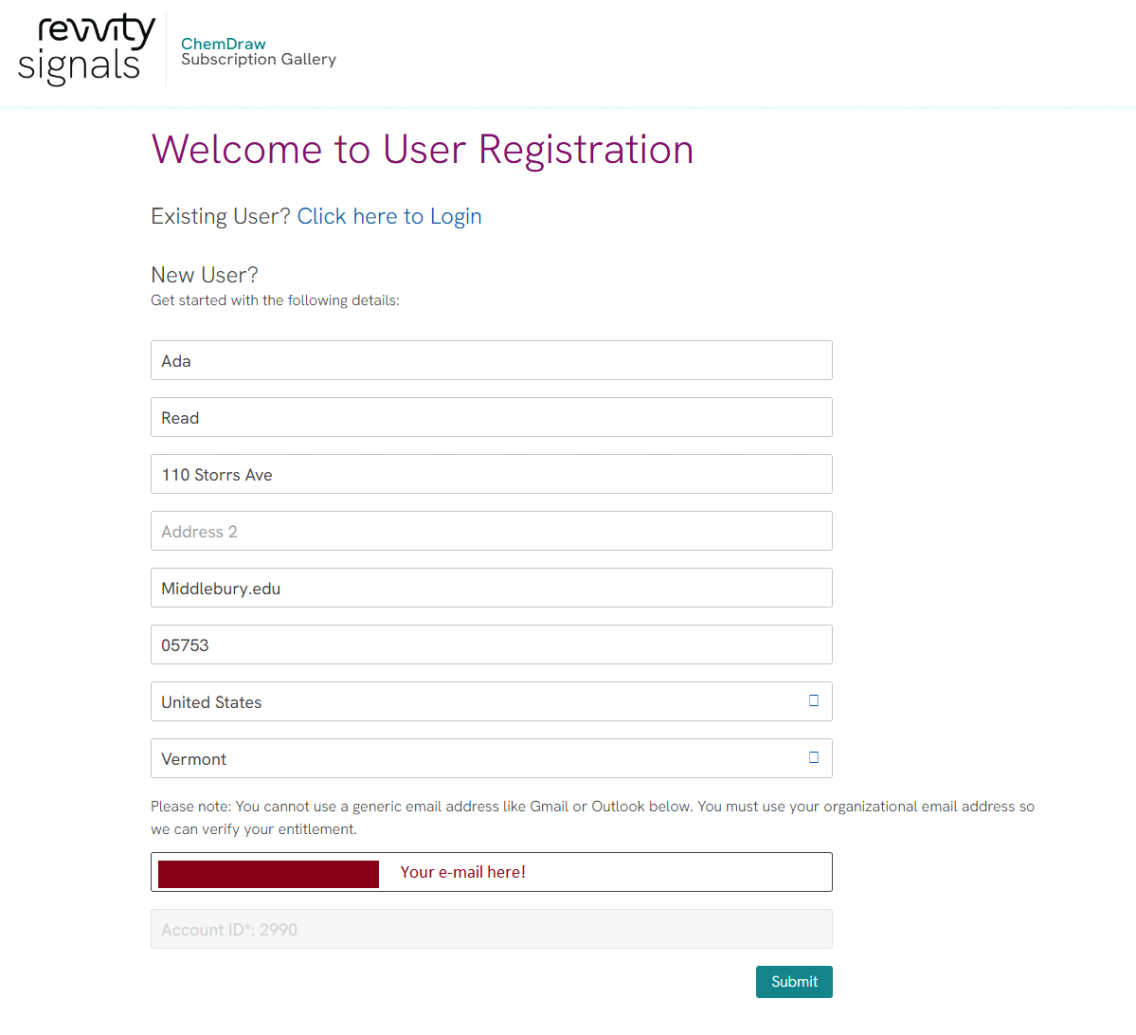
I used a ‘dummy’ account ada_read.
You’ll then be required to ‘Verify your Account’

===========================================================
Your verification e-mail looks like this:
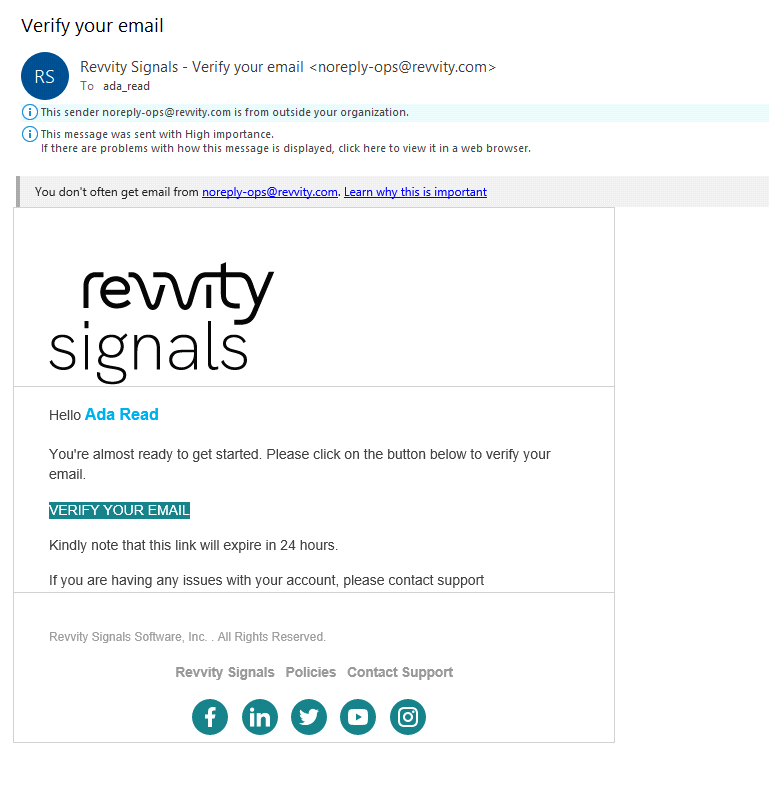
Click on the VERIFY YOUR EMAIL link in the e-mail.
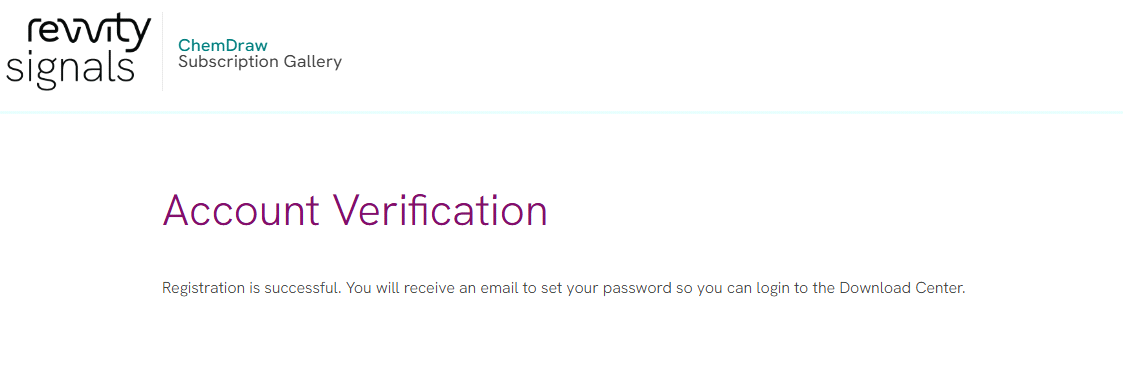
A webpage will manifest acknowledging your account verification.
You then get an e-mail to set your password for your account
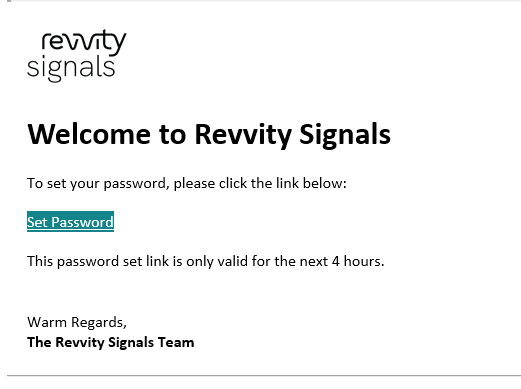
![Click [ Set Password ]](/college/sites/default/files/styles/1136x639/public/2026-09/CDP-09a.PNG?fv=2xsNaRTN&itok=ApwbbE4i)

Enter a password in both boxes. Something unique & follow their password criteria.
The next window will allow you to put in your account username & password & log in.
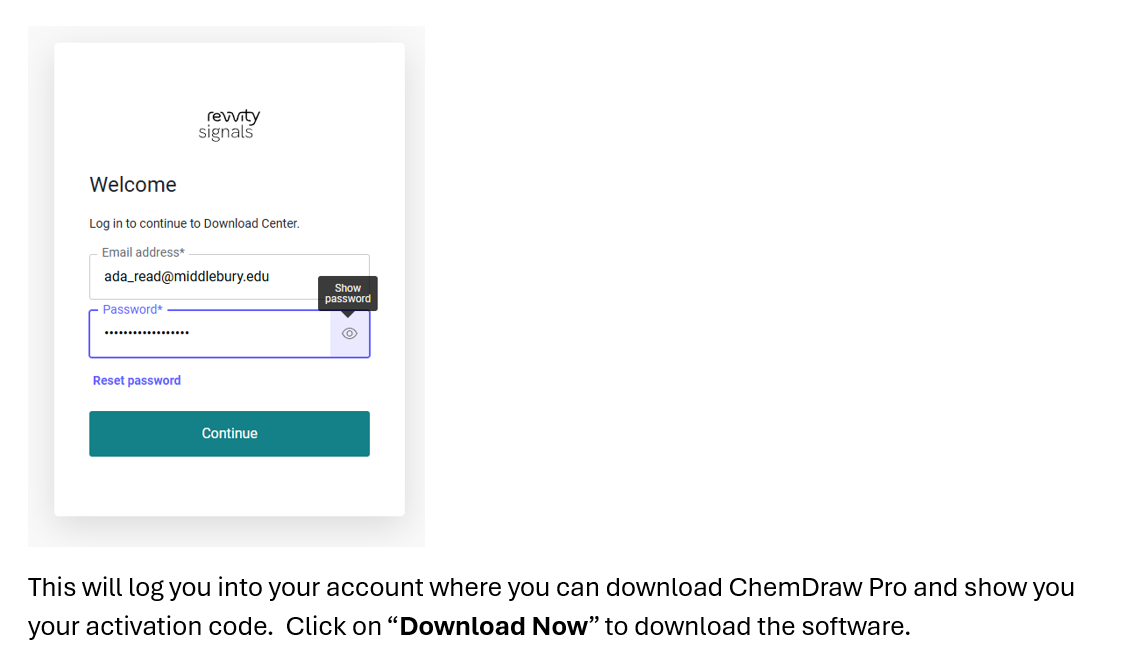
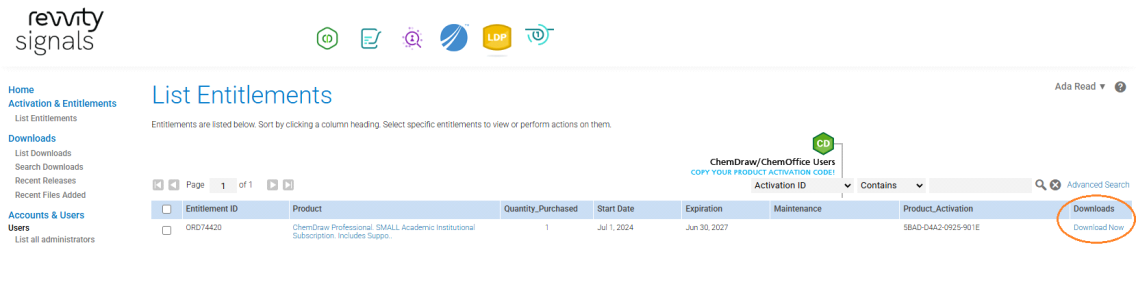
This will invoke the next window wherein you can click “ChemDraw Professional” and the related “Quick Start Guide”
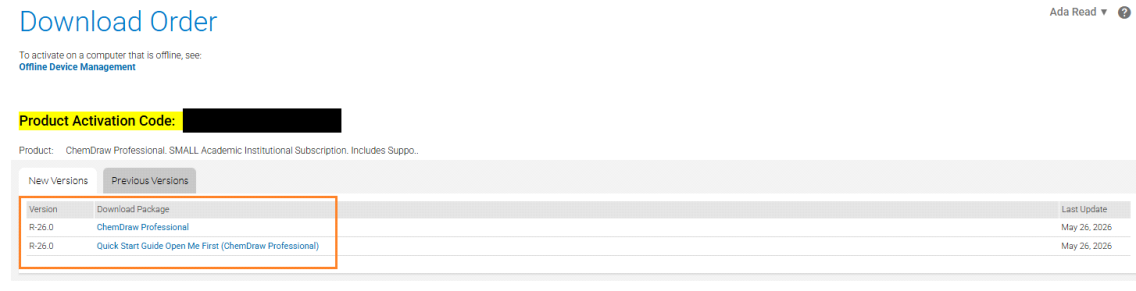
Which will bring you to this page –
===========================================================
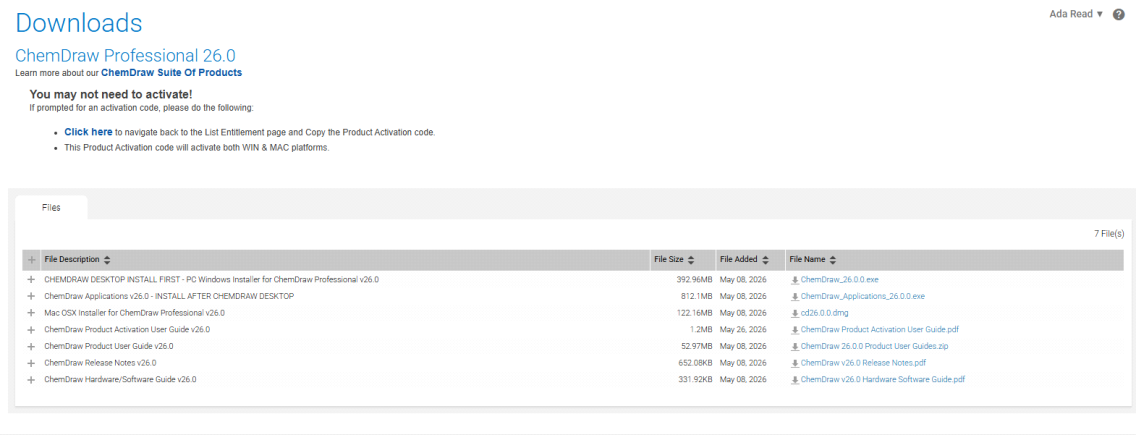
with the following download options:
- CHEMDRAW DESKTOP INSTALL FIRST - PC Windows Installer for ChemDraw Professional v26.0
- ChemDraw Applications v26.0 - INSTALL AFTER CHEMDRAW DESKTOP
- Mac OSX Installer for ChemDraw Professional v26.0
- ChemDraw Product Activation User Guide v26.0
- ChemDraw Product User Guide v26.0
- ChemDraw Release Notes v26.0
- ChemDraw Hardware/Software Guide v26.0
Select your desired downloads.
Run your installer (Mac/Windows) and use your Product Activation Code for activation.
Here’s a link that walks you through the software installation process.
Note that the software version that they are installing in the link is ChemDraw 23.0 so it’s a little antiquated.
ChemDraw: How do I download and install ChemDraw on my Windows PC – Revvity Signals Support
Frequently Asked Questions
Can faculty and students install the software at home?
Absolutely. A professor can install the software on a home computer. The software can be installed on home computers and school computers, or on many school computers. The same holds true for students. As long as they are covered by the site license at all, which means that they have a valid email address at your school, they can install the software on as many computers as they want.
I have a Mac, is this available to me?
Yes, the software is available for both Windows and Macintosh users. You will be sent serial numbers for both types of computers, and you may choose which one to download from the Revvity Signals software URL.
Are Manuals available?
Yes - Manuals are available to download in the form of PDF. They are available for download from the same site.
What happens after a year?
We expect that most schools will renew their license rather than let it expire. If your license expires, you will only lose the ability to create new data and to edit existing data. You will still be able to view any data you had created while under the site license.
What if the software is updated before our license expires?
The Annual Site License allows you to use the latest version of the software, regardless of when that version was released. Each user will have to download and install the update, of course, but they are certainly allowed to do so under the terms of the license.